
Rollbacks
To roll back a deployment in Temps, pick an earlier deployment in the dashboard (or pass its ID to the CLI or API) and Temps creates a new deployment from it. It reuses that deployment's Docker image when the image is still on the server, or rebuilds its Git commit when it isn't. Rollback is always manual: nothing rolls back automatically after a deploy succeeds.
Rollbacks revert application code. For data recovery — restoring a database, cloning a service, or point-in-time recovery from a backup — see Restore & Recovery. To configure the backups those restores draw from, see Set Up Backups & Monitoring.
Quick rollback
Roll back to the previous deployment
- 1
Navigate to your project's Deployments page in the dashboard.
- 2
Find the previous working version you want to roll back to.
- 3
Open the deployment's menu (kebab/...) and choose 'Rollback to this'.
- 4
Temps creates a new deployment from that version's image (or rebuilds its commit if the image is gone) and routes the domain to it.
Checkpoint: Confirm a new deployment now shows the Current badge and a completed status on the Deployments page, and your app is serving the working version.
From the dashboard
- Go to Deployments — open your project and click Deployments
- Pick the version — find the working deployment you want to roll back to
- Roll back — open the deployment's menu and choose Rollback to this
- Done — Temps creates a new deployment from that version and routes traffic to it
From the CLI
# List recent deployments (the 10 most recent by default) to find the ID to roll back to
bunx @temps-sdk/cli deployments list --project my-app

# Roll back to that deployment (asks for a yes/no confirmation before proceeding)
bunx @temps-sdk/cli deployments rollback --project my-app --to 456
Pass --to with the ID of the deployment you want. Running rollback without --to opens a picker, but the picker currently only lists deployments in completed status — and once a newer deployment goes live, older ones are marked stopped — so in practice it usually offers only the deployment that is already live. Deployments in stopped status are valid rollback targets when passed with --to.
When to roll back
Roll back when:
- A new deployment passed its health check but introduced a bug you need gone now
- Performance degrades after a deploy
- A dependency update breaks your application
- You need to buy time while investigating an issue
Do not expect a rollback to help when:
- The issue is in a database migration — a rollback does not undo schema changes
- The issue comes from an environment variable change — a rollback uses the environment's current variables
- The previous version had the same issue
If the deploy itself failed, you don't need a rollback at all: see Failed deploys never take traffic. To work out why a deploy failed, see Debug a failed deployment.
Roll back from the API
curl -X POST "https://your-temps-instance/api/projects/{project_id}/deployments/{deployment_id}/rollback" \
  -H "Authorization: Bearer YOUR_TOKEN"
Replace {deployment_id} with the ID of the deployment you want to revert to, not the current one. The target must be in deployed, completed or stopped state — stopped is the state of every deployment that a newer one replaced, so any earlier successful deployment qualifies. Failed and cancelled deployments can't be targets.
The API returns the newly created rollback deployment. The call needs permission to create deployments in the project, so read-only roles cannot roll back. See the API reference for authentication.
How rollbacks work
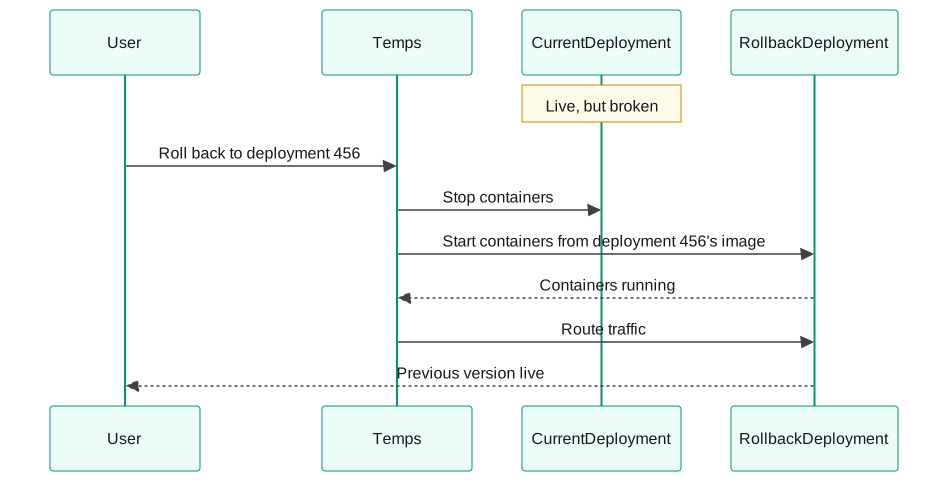
A rollback never restarts the old containers — once a newer deployment went live, those were stopped. Instead it creates a new deployment from the version you picked, recorded in history as a rollback. The deployment you rolled back to keeps its stopped status. How the new deployment is produced depends on whether the old image is still available.
Reusing the image (the usual case)
If the target deployment's Docker image is still on the server — the normal case for a recent deployment — Temps redeploys that exact image without rebuilding. In the current release (v0.1.0-beta.56):
- The current containers stop — this frees their ports, so there is a short interruption while the old image starts
- Containers start from the old image — with the environment's current variables, port, replica count and CPU/memory settings
- Readiness — Temps waits for the containers to be running; this path does not run the HTTP health check
- Traffic moves to the rollback deployment, and it is marked current
From the next release: nightly builds change the order so the rollback is zero-downtime — the new containers start first, traffic switches to them, and only then do the old containers stop. Nightly builds also reuse the port, replica count and CPU/memory values recorded on the target deployment, and run an HTTP health check when that deployment recorded a custom health-check path.
Rebuilding the commit
Temps' periodic image cleanup removes older images, and static sites have no server image to reuse. For a Git-sourced project whose target image is gone, or that uses a static preset, Temps rebuilds the target deployment's recorded commit through the normal pipeline instead. That takes as long as a normal build, goes through the normal health check, and the current deployment keeps serving until the rebuilt one passes it.
Projects with no Git source (deployed from an image or uploaded files) have nothing to rebuild. A non-Git static project simply points the environment back at the earlier deployment's files. A non-Git image project whose image has been pruned can't be rolled back; deploy the image again instead.
What gets rolled back
- Application code — the target deployment's version
- Container image — the target's image, or a fresh build of its commit
- Domain routing — moves to the new rollback deployment
What doesn't change
- Environment variables — the rollback uses the environment's current variables, not the ones the target deployment originally ran with
- Database — data and schema are untouched
- File storage — uploaded files stay intact
- SSL certificates — certificates remain valid
Rollback strategies
Immediate rollback
Roll back to a specific deployment
- 1
Open your project's Deployments page in the dashboard.
- 2
Locate the exact deployment ID you want to restore (for example 456) in the deployment history.
- 3
Open the deployment's menu (kebab/...) and choose 'Rollback to this'.
- 4
Temps creates a new deployment from the chosen version's image (or rebuilds its commit) and routes traffic to it.
Checkpoint: Confirm a new deployment now shows the Current badge and a completed status on the Deployments page, and is serving traffic. The deployment you picked (456) keeps its stopped status.
When you detect issues right after a deploy, find the last good deployment's ID with deployments list and roll back to it. Use this when critical errors appear or performance degrades significantly.
Failed deploys never take traffic
There is no automatic rollback in Temps — not on errors, and not on a failed health check — because a failed deploy never takes traffic in the first place. The health check is a gate before cutover: before Temps switches traffic to a new deployment, it checks the new containers over HTTP — on / by default, or on the health.path set in .temps.yaml (image and static deploys can set one with --health-check-path). It needs two consecutive healthy responses. If the containers crash, or don't return a passing response (2xx, 3xx, 404, or 405) within 5 minutes (or keep answering with error responses for 60 seconds in a row), the deployment is marked failed and cleaned up, and whatever was already live keeps serving traffic — routing was never switched away from it.
The check only confirms the server is up: 2xx, 3xx, 404, and 405 responses all count as healthy. Once a deployment passes it and goes live, Temps does not watch error rates and will not revert it. A manual rollback is what you need for a deployment that passed the check but is still broken — wrong content, a business-logic bug, a misconfigured integration, and so on. Error tracking and uptime monitoring tell you when that happens.
Deployment history
View history
See your most recent deployments and their status:
# List the 10 most recent deployments
bunx @temps-sdk/cli deployments list --project my-app

# Output:
# ID    Environment   Status      Branch   Commit    Created
# 789   production    completed   main     a1b2c3d   2h ago
# 456   production    stopped     main     e4f5g6h   1d ago
# 123   production    stopped     main     i7j8k9l   3d ago
The completed deployment is the one serving traffic. Older successful deployments are marked stopped once a newer one goes live, and can still be rolled back to. The Created column shows relative times for the past week and a date after that.
The list shows one page of results — 10 by default. To see older deployments, raise the limit (up to 100) or page through them:
bunx @temps-sdk/cli deployments list --project my-app --limit 50
bunx @temps-sdk/cli deployments list --project my-app --page 2 --per-page 20
Compare deployments
There's no dedicated CLI command for diffing two deployments. List them as JSON and compare the fields that matter (Git commit, resource settings) yourself, or open each deployment's details page in the dashboard side by side. --json returns the same single page of results, so add --limit or --page if the deployment you want is older:
# List deployments with full details as JSON
bunx @temps-sdk/cli deployments list --project my-app --json
Shows:
- Git commit info (hash, author, message) — not a full diff, just enough to identify which commit each deployment is running
- The resource settings recorded when the deployment was created: CPU/memory limits and requests, exposed port, and replica count
- A few other settings recorded at the same time (auto-deploy, container exec, performance metrics, session recording)
It doesn't include environment variables: deployments don't record the variables they ran with, so this output can't tell you whether a variable changed between two deployments.
After rollback
Investigate the issue
- View deployment logs — see what went wrong
- Check error tracking — review errors from the bad deployment
- Compare configurations — see what changed
- Test locally — reproduce the issue
Fix and redeploy
Redeploy after fixing the issue
- 1
Make and commit your changes to fix the code or configuration.
- 2
Test locally to verify the fix works.
- 3
Trigger a new deployment for the project from the dashboard.
- 4
Monitor the new deployment closely for the same issues.
Checkpoint: Watch the deployment status for 5-10 minutes and confirm it shows a completed status and stays healthy without the previous errors.
Once you've fixed the issue:
- Make changes — fix the code or configuration
- Test locally — verify the fix works
- Deploy again — create a new deployment
- Monitor closely — watch for the same issues
The previous deployment stays in history
The deployment you rolled away from is marked stopped — its containers are stopped, but the deployment itself stays in your history, so you can compare it with the next deployment, debug what changed, or roll forward to it again.
Best practices
- Test in staging first — deploy to a staging environment before production; preview deployments help here
- Gate deploys on CI — run tests before Temps builds; see CI/CD setup
- Set a real health-check path — point
health.pathat an endpoint that checks your dependencies, so the pre-cutover gate catches more than "the server is up" - Keep migrations backward-compatible — a rollback can't undo a schema change, so the previous version must still run against the new schema
- Watch the first minutes — check errors and response times after each deploy, and keep the rollback command ready
Rollback limitations
What can't be rolled back
- Database migrations — schema changes persist
- External API changes — third-party integrations
- External state — anything written to S3 or other services
- Environment variable changes — a rollback always uses the environment's current variables, so revert variable changes separately
Manual intervention required
Some changes require manual fixes:
- Database schema changes — may need a migration rollback, which you run yourself; Temps does not run migrations
- External service changes — API contract changes
- Breaking configuration — invalid configuration files