
Migrate from Coolify to Temps
To move from Coolify to Temps, create a Coolify API token, point the Temps import wizard at your Coolify instance, review the plan it generates, and execute it. Temps reads the Coolify API, recreates the application as a Temps project with its build config, environment variables and custom domains, creates managed services for its databases, copies their data when the database's public port is enabled, and deploys the app. Coolify keeps serving traffic until you move DNS.
Deciding whether to switch first? See Temps vs Coolify for the feature comparison and Coolify pricing explained for the cost side. For a hand-run migration with a DNS cutover checklist, see the manual Coolify-to-Temps walkthrough.
What Temps discovers from Coolify
The importer treats the Coolify environment that holds your application as the project boundary:
- Applications built from a Git repository or a Docker image. The one you pick becomes the project; other applications in the same Coolify environment become additional deployments.
- Standalone databases (PostgreSQL, MySQL/MariaDB, MongoDB, Redis) in that environment, which become Temps-managed services.
- Environment variables, read through Coolify's API with their real values. Preview-only variables are left out.
- Domains from each application's FQDN list, imported as custom domains.
Will my data come across?
PostgreSQL, MySQL/MariaDB and MongoDB data is copied by a one-off dump/restore during the import only if Temps can reach the database from outside the Coolify server, which means the database's public port is enabled in Coolify. If it isn't, the plan marks the data as not migrated and tells you to either enable the public port before importing or dump the database on the Coolify server (docker exec) and restore it into the new Temps service. Turn the public port off again once the copy is done.
What the Coolify importer does not move:
- One-click services from Coolify's service catalog. These Compose-based services aren't scanned. Deploy their Compose file as a Temps project, or recreate them as Temps services.
- Coolify-generated
*.sslip.iodomains. They are planned as skipped; Temps gives the project its own address instead. - Redis data. The Redis service is created empty, which is fine for a cache. If you keep data in Redis that you need, copy it yourself.
- Files in Docker volumes. Temps app containers have no persistent volumes, so move uploads and other file data to object storage such as Temps managed S3 before you cut over.
Before you start
You need a Coolify API token:
- In Coolify, go to Keys & Tokens → API tokens.
- Make sure the instance API toggle is enabled — Coolify's API is off by default on some installs.
- Create a token and copy it.
You'll also need your Coolify instance's URL (e.g. http://your-coolify-server:8000).
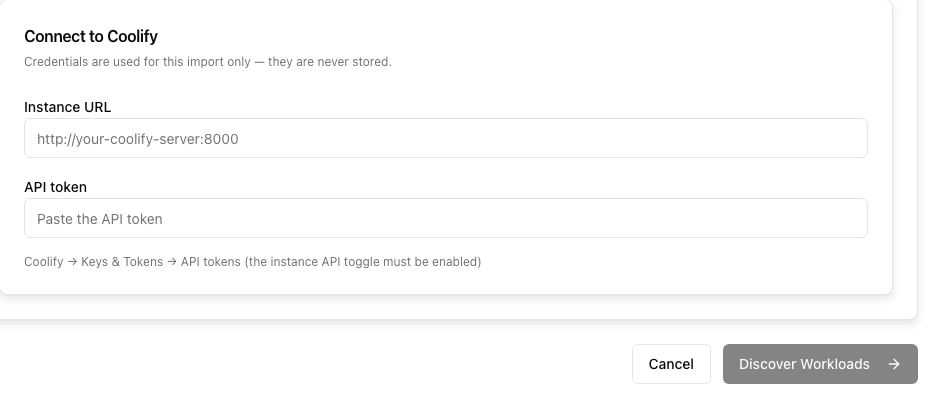
Step 1: Connect and discover
Discover what's running on Coolify
- 1
In the Temps dashboard, go to Projects, then click Import.
- 2
Select Coolify as the source.
- 3
Enter the instance URL and the API token from Keys & Tokens.
- 4
Click Discover Workloads.
Temps queries the Coolify API directly — nothing is created on this step.
Step 2: Review the plan
Pick the application to import and Temps shows the plan it will execute: the project name, build configuration, every environment variable it found (secrets masked), the databases it will create as managed services with what will happen to each one's data, and the domains it will import or skip.
Linking a Temps-tracked Git repository at this step is optional. Temps' own discovery already picks up the application's Git source (if Coolify has one configured), so linking is for future git-push auto-deploys, not a requirement to proceed.
Step 3: Execute the import
Run the import end to end
- 1
Review the plan and click Execute Import.
- 2
Temps creates the project, its services, and deploys the application.
- 3
Wait for the deployment to reach a healthy state — Temps verifies the app actually answers before reporting the import complete.
Your Coolify instance keeps running the whole time — the import only reads from it. Verify the imported app on its Temps-provided address before touching DNS.
After the import
Once you've confirmed the imported app behaves correctly, point DNS for its domains at the Temps server; Temps issues the TLS certificates once the records resolve. To add a domain the import didn't bring over, use the dashboard or bunx @temps-sdk/cli custom-domains create --project-id <id> -d app.example.com -y, as shown in moving the production domain. Keep the Coolify deployment running until you've verified normal traffic on Temps, then revoke the API token you created for the import.
For the general import flow that applies across every supported platform, see Import an Existing Platform.