
Backups
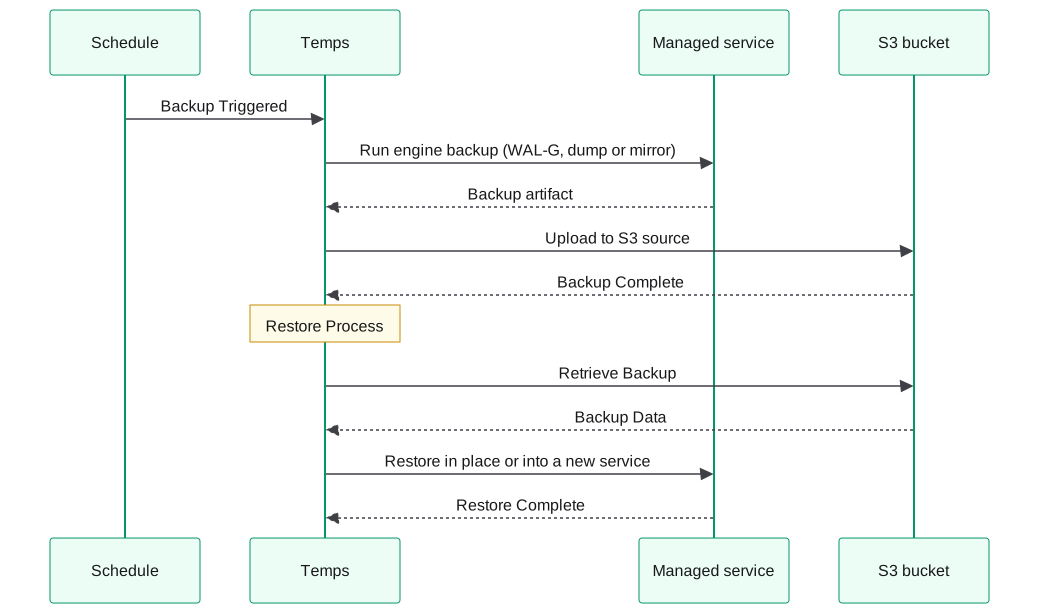
Temps backs up its managed services — PostgreSQL, MariaDB, Redis, MongoDB and S3 storage — plus its own control-plane database, on a cron schedule, to an S3-compatible bucket you configure. Every backup goes to an S3 source; there is no local-disk target. App containers, their files and volumes are not backed up.
This is the feature reference. For step-by-step setup instructions, see Set Up Backups & Monitoring. For in-place restores, clones and point-in-time recovery, see Restore & Recovery.
Quick start
Enable automatic backups
- Open Backups - Click Backups in the console sidebar
- Add an S3 source - Enter the bucket, region, credentials and (for non-AWS providers) the endpoint
- Create a schedule - Pick a 6-field cron expression and a retention period in days
- Done - Each run backs up your managed services and the control plane to that bucket
Create backup now
Run a backup now
- 1
Open the service detail page for the managed service you want to back up.
- 2
Click Trigger Backup and choose the S3 source.
Checkpoint: Open Backups in the sidebar and wait until the run's status shows completed.
# Trigger an immediate backup for a managed service
bunx @temps-sdk/cli backups run-service \
  --id <service-id> \
  --s3-source-id <s3-source-id> \
  --type full
You can also trigger a backup from the web UI: open the service detail page and click Trigger Backup.
What gets backed up
Temps picks the backup method per engine. Every artifact is uploaded to an S3 source.
| Service | Backup method | Point-in-time recovery | Reference |
|---|---|---|---|
| PostgreSQL | WAL-G base backup plus continuous WAL archive when the image includes WAL-G; otherwise pg_dump | Yes, with WAL-G | Managed PostgreSQL |
| PostgreSQL HA cluster | WAL-G cluster backup | Yes | HA databases |
| MariaDB | mariadb-backup physical base plus binary logs when the image has the tools; otherwise mariadb-dump | Yes, with a physical base | Managed MariaDB |
| Redis | RDB snapshot (redis-cli --rdb sidecar, any image) | No | Managed Redis |
| MongoDB | mongodump archive (sidecar, any image) | No | Managed MongoDB |
| S3 / RustFS / MinIO | Bucket mirror to the S3 source | No | Managed S3 (RustFS) |
| Temps control plane | pg_dump of Temps' own database | No | Restore & Recovery |
The control-plane backup
The control-plane backup is a dump of Temps' own PostgreSQL database: projects, environments, deployments, domains, users, settings and managed-service records. Environment variable values are inside that dump, still encrypted. High-volume observability and analytics tables (traces, request logs, events) are dumped schema-only, so their rows are not backed up.
What is not backed up
- App containers - Temps does not snapshot application containers, their filesystems or uploaded files. App containers have no persistent volumes; store files in managed S3 or a database so they are covered.
- Docker Compose volumes - Named volumes in a Compose project are not backed up by Temps.
- Individual environment variables - They exist only inside the encrypted control-plane dump and cannot be restored one by one.
Backup schedules
Create schedule
Schedules use a 6-field cron expression with seconds first (sec min hour day month weekday). A 5-field expression such as 0 2 * * * is rejected. Runs must be at least 1 hour apart.
Create a backup schedule
- 1
Click Backups in the console sidebar and open your S3 source.
- 2
Click to add a schedule to that source.
- 3
Set the cron expression (e.g. 0 0 2 * * * for daily at 2 AM), the retention period (e.g. 30 days), and choose whether to back up every service or only selected ones, and whether to include the control plane.
Checkpoint: Confirm the new schedule appears on the Backups page with a next-run time.
# Daily backup at 2 AM, kept for 30 days
bunx @temps-sdk/cli backups schedules create \
  --name "daily-full" \
  --schedule "0 0 2 * * *" \
  --type full \
  --retention 30 \
  --s3-source-id <s3-source-id>

# Weekly backup on Sundays at 3 AM, kept for 90 days
bunx @temps-sdk/cli backups schedules create \
  --name "weekly-full" \
  --schedule "0 0 3 * * 0" \
  --type full \
  --retention 90 \
  --s3-source-id <s3-source-id>

# Every 6 hours, kept for 7 days
bunx @temps-sdk/cli backups schedules create \
  --name "every-6h" \
  --schedule "0 0 */6 * * *" \
  --type full \
  --retention 7 \
  --s3-source-id <s3-source-id>
--type is a label stored on the backup record; it does not change how the engine backs up. For continuous protection between scheduled runs, use a PostgreSQL image with WAL-G (the default image) or a MariaDB image with mariadb-backup (the default mariadb:lts), which archive WAL or binary logs as they happen.
Schedule options
- Targets - By default a schedule backs up every managed service on the server, including ones you create later. In the dashboard you can limit it to selected services.
- Control plane - Included in every run by default; you can turn it off per schedule.
- Retention - Backups older than the retention period (in days) are deleted from the bucket automatically.
- Failure alerts - When a backup job fails, Temps sends a notification through your configured notification channels.
Backup storage
S3 sources
Every backup is written to an S3 source: an S3-compatible bucket plus credentials. When a run or schedule doesn't name a source, Temps uses the source you marked as default; if there is none, the request fails. Any S3-compatible endpoint works, such as AWS S3, Cloudflare R2, DigitalOcean Spaces or MinIO. If you don't have a bucket yet, S3-compatible blob storage without AWS compares self-hosted and managed options.
Keep the bucket off the server that runs Temps. A backup stored on the same disk does not survive the loss of that server.
Configure storage
Add an S3 backup source
- 1
Click Backups in the console sidebar.
- 2
Add a new S3 source and enter the bucket name, region, and access/secret keys (set a custom endpoint for MinIO, R2 or DigitalOcean Spaces).
- 3
Save the source.
Checkpoint: Confirm the source is listed so schedules and on-demand backups can target it.
# Add an S3-compatible backup source
bunx @temps-sdk/cli backups sources create \
  --name "my-s3-backups" \
  --bucket my-backups \
  --region us-east-1 \
  --access-key YOUR_KEY \
  --secret-key YOUR_SECRET

# List configured sources
bunx @temps-sdk/cli backups sources list --json
Restore from backup
Managed services restore in place (overwrites the service) or into a new service. PostgreSQL (from WAL-G backups) and MariaDB (from mariadb-backup physical backups plus binary logs) also support point-in-time recovery. The Restore & Recovery reference covers plans, PITR targets and restoring backups made by another Temps instance.
Restore a service from a backup
- 1
Open the service detail page.
- 2
Open the restore view for that service.
- 3
Pick the backup to restore from. An in-place restore (no new-service option selected) is DESTRUCTIVE and will OVERWRITE the existing service data — confirm the OVERWRITE prompt to proceed.
Checkpoint: Track the restore run until it reports complete, then verify the data.
# List backups for a schedule, then restore one service in place
bunx @temps-sdk/cli backups list --schedule-id <schedule-id> --json
bunx @temps-sdk/cli services restore \
  --id <service-id> \
  --backup-id <backup-id>
A restore covers one service's data. It does not touch your apps, deployments, environment variables or other services. The control-plane database is restored separately with the server binary's temps backup restore command — see disaster recovery.
Backup best practices
Regular backups
- Daily for production - Critical databases
- Weekly for staging - Less critical environments
- Before risky changes - Trigger a manual backup before schema migrations or major version upgrades
Test restores
Restore into a new service regularly and check the data, so you know the backups work before you need one:
# Restore a known-good backup to a staging service
bunx @temps-sdk/cli services restore \
  --id <staging-service-id> \
  --backup-id <backup-id>

# Then verify data integrity and test the application against it
Backup verification
A completed backup run means the artifact was uploaded; it does not prove the data restores cleanly. Periodic restore tests into a new or staging service are the way to confirm recoverability. Failed runs trigger a notification.
Disaster recovery
If you lose the whole server, install Temps on a new one, restore the control-plane database with temps backup restore (it reads the backup from your S3 bucket), then restore each managed service from its backup. Restoring a service from a backup that the new instance never recorded is called an orphan restore; see Restore & Recovery. Then redeploy your apps from Git.
Recovery time depends on the size of the backups and the speed of your S3 provider; time a test restore to know yours.
Backup management
Manage schedules
Disable, enable, or delete a schedule
- 1
Click Backups in the console sidebar.
- 2
Find the schedule you want to manage in the list.
- 3
Disable it to pause future runs, re-enable it to resume, or delete it to stop future runs (past backups remain in S3).
Checkpoint: Confirm the schedule's status reflects the change on the Backups page.
# Disable a schedule (pauses future runs without deleting past backups)
bunx @temps-sdk/cli backups schedules disable --id <schedule-id>

# Re-enable a previously disabled schedule
bunx @temps-sdk/cli backups schedules enable --id <schedule-id>

# Delete a schedule (stops future runs; past backups remain in S3)
bunx @temps-sdk/cli backups schedules delete --id <schedule-id>
Access backup files
Individual backup files are stored directly in your configured S3-compatible bucket. To download or export a backup, access it through your S3 provider's console, CLI (aws s3 cp, mc cp, etc.), or any S3-compatible client using the credentials from your backup source.
For the step-by-step setup walkthrough, see Set Up Backups & Monitoring. To create the services these backups cover, see Set Up Managed Services. Guide: Automate PostgreSQL backups in Docker containers compares doing this by hand with pg_dump, cron and S3.