
Import an Existing Platform into Temps
Temps has a built-in import wizard (Projects → Import, or bunx @temps-sdk/cli migrate) that reads a Coolify, Dokploy, CapRover, Portainer, Kubernetes or Kamal setup, or containers on the Temps server's own Docker Engine, and recreates what it finds as Temps projects: build config, environment variables, domains, managed databases and a live deployment. Database data is copied when the source database is reachable from the Temps server; volume and file data never is. The CLI can also import a project from Vercel.
Supported platforms
| Platform | What Temps discovers | Guide |
|---|---|---|
| Coolify | Applications, one-click databases | Migrate from Coolify |
| Dokploy | Applications, databases | Migrate from Dokploy |
| CapRover | Apps, one-click databases | Migrate from CapRover |
| Portainer | Containers and Compose stacks | Migrate from Portainer |
| Kubernetes | Deployments, StatefulSets, CronJobs | Migrate from Kubernetes |
| Kamal | Services declared in config/deploy.yml | Migrate from Kamal |
| Docker | Running containers on the Temps server's Docker Engine (no credentials) | See below |
| Vercel (CLI only) | Projects, environment variables and domains, via a Vercel API token | Migrate from Vercel |
Each guide covers the credentials that specific platform needs and what its importer leaves for you to move by hand. Vercel isn't in the dashboard wizard; run bunx @temps-sdk/cli migrate run -s vercel instead.
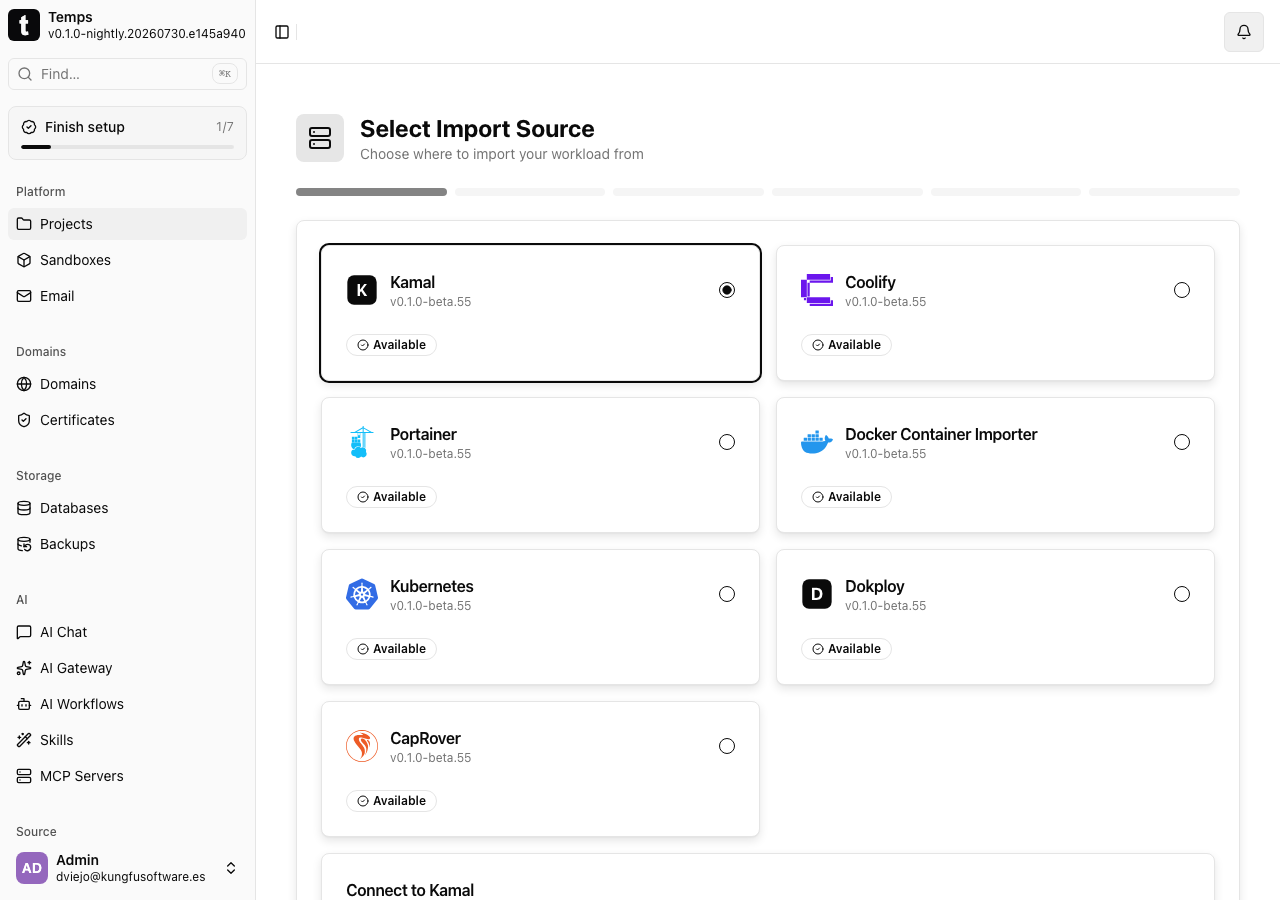
Docker containers on the Temps server
The Docker Container Importer is the wizard's seventh source. It reads the Docker Engine on the server running Temps, so there are no credentials to enter, and it lists the running containers there. Use it for containers you started by hand or with docker compose on that machine.
Importing a container creates an image-based Temps project with the container's image, environment variables, ports and health check. Docker keeps no record of the repository a container came from, so the project isn't linked to Git: link a repository if you want git-push deploys, or trigger the first deployment yourself. Databases, domains and volume contents aren't imported by this source. For containers on another machine, use the Portainer importer if Portainer manages them, or recreate them by hand.
bunx @temps-sdk/cli migrate discover -s docker
bunx @temps-sdk/cli migrate run -s docker
How the import wizard works
The same flow runs for every platform above, in Projects → Import:
- Connect — pick the source platform and provide credentials (an API token, an admin password, a kubeconfig, or a pasted
deploy.yml— the credential type depends on the platform; see the per-platform guides). - Discover — Temps queries the source instance directly and lists what's actually running: apps, databases, containers.
- Review the plan — pick the workload to import and Temps shows exactly what it will create: the project, its environment, any managed services, environment variables (secrets masked), and domains. Nothing is created yet at this step.
- Execute — Temps creates the project and its services, copies environment variables, imports data into managed services where the source database is reachable, and deploys the application for real.
- Verify — Temps checks the deployment reaches a healthy state and the app actually answers over HTTP before calling the import done. If something needs attention, the wizard says exactly what and where to look.
See what would be imported, without creating anything
- 1
Go to Projects, then click Import.
- 2
Select the source platform and enter its credentials.
- 3
Click Discover Workloads, pick the one to import, and review the plan — nothing is created until you click Execute Import.
Linking a Temps-tracked Git repository during the import is optional — the wizard's own discovery already picks up the workload's git source (if any) independently, so image-only workloads and public repositories both import fine without one.
Before you start
- Keep the source platform running until you've verified the imported app on Temps — the import reads from it, it doesn't touch or shut it down.
- Have the source instance's admin credentials ready (see the platform-specific guide for exactly which ones).
- If the workload has a database, note whether the source database is reachable from the server running Temps — that determines whether its data copies automatically or needs a manual
pg_dump/pg_restore(see below).
What moves automatically
| Moves automatically | Needs a manual step |
|---|---|
| The project, its environment, and build configuration | DNS cutover to the new domain |
| Environment variables, including secret values the source API returns | Secret values the source doesn't expose: Kubernetes Secrets and Kamal env.secret import as names only |
| Databases created as managed Temps services | Database data when the source database isn't reachable from the Temps server (always the case for Kubernetes and Kamal), and Redis data on every platform |
| PostgreSQL, MySQL/MariaDB and MongoDB data, when the source database is reachable (a public or published port on Coolify, Dokploy, CapRover and Portainer) | Volume and file data that isn't in a database: Temps never copies volume contents |
| Domains discovered from the source, when not already registered elsewhere | Platform-generated domains (*.sslip.io, *.traefik.me, CapRover subdomains), which are skipped |
| The deployment itself — a real build (git-backed platforms) or a real image pull and container start (image-based platforms) | Coolify one-click catalog services and Dokploy Compose services, which aren't scanned |
| Anything platform-specific the source doesn't expose through its own API (e.g. custom nginx config on the source host) |
Temps app containers have no persistent volumes. Before you cut over, move uploads and other files to object storage such as Temps managed S3, or deploy the workload as a Docker Compose project with named volumes.
When a domain the wizard discovers is already registered on another Temps project or environment, that one step is skipped with a clear message instead of failing the whole import — add it manually once you're ready to cut over.
After the import
The imported project deploys to a Temps-provided address immediately, so you can verify it while the source platform keeps serving production traffic.
Move the production domain
- 1
Open the project, go to Settings, then Domains, and click Add Domain.
- 2
Enter app.yourdomain.com and copy the DNS record shown by Temps.
- 3
Update the record at your DNS provider without deleting the application on the old platform.
Checkpoint: Confirm the domain resolves to the Temps server, TLS is active, and the app behaves as expected under real traffic.
Keep the source platform and its backups available until you've observed normal production traffic on Temps and DNS caches have expired. Then revoke the credentials you used for the import and decommission the old deployment.
Platform not listed here?
The import wizard covers the seven sources above. For anything else — Dokku, Easypanel, a Compose stack on a machine other than the Temps server, or a platform Temps doesn't discover yet — you recreate the deployment by hand: connect the same Git repository, copy over the build settings and environment variables, recreate any databases as managed services, and verify the new deployment before cutting DNS over. The Netlify, Heroku, Railway, Render, and Fly.io guides walk through that manual path for those specific platforms, the Dokku guide covers Dokku apps and their plugin databases, and the Vercel guide covers both the CLI import and the manual path. The same approach applies to any platform not covered by the automated wizard.